
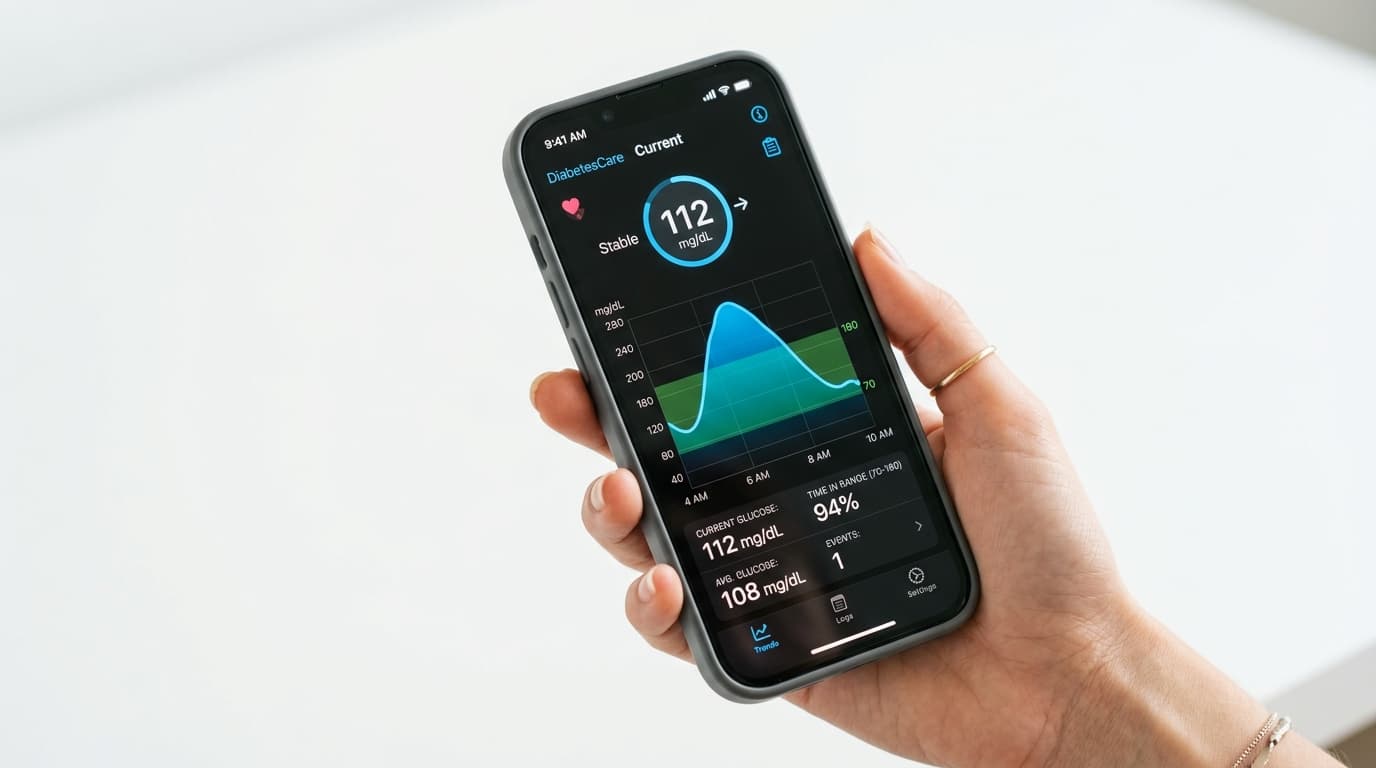
CGM Smartphone Apps: Bluetooth, Cloud Sync, and Real-Time Data Sharing
CGM Bluetooth connectivity, real-time data display, cloud syncing, follower sharing, and the mobile apps for Dexcom, Abbott Libre, and Eversense devices in 2026.
Bluetooth Low Energy: The Bridge Between Sensor and Phone
Every modern continuous glucose monitor uses Bluetooth Low Energy (BLE) to transmit data from the on-body sensor/transmitter to a paired smartphone. BLE was specifically designed for low-power, always-on connections — exactly the use case CGMs require. The transmitter broadcasts a small data packet containing the current glucose value, trend direction, and sensor status every 1 to 5 minutes. This data packet is typically less than 100 bytes, so the power draw on both the transmitter battery and the phone is minimal. BLE range is 6 to 10 meters (20 to 33 feet) under normal conditions, allowing the phone to be in another room, on a nightstand, or in a gym bag while still receiving readings. If the phone moves out of range, the sensor stores readings in its internal memory (up to 8 hours for most devices) and automatically backfills the data when the connection is reestablished. Pairing is a one-time process: after the initial sensor activation scan, the BLE connection is maintained automatically until the sensor expires.
Manufacturer Companion Apps
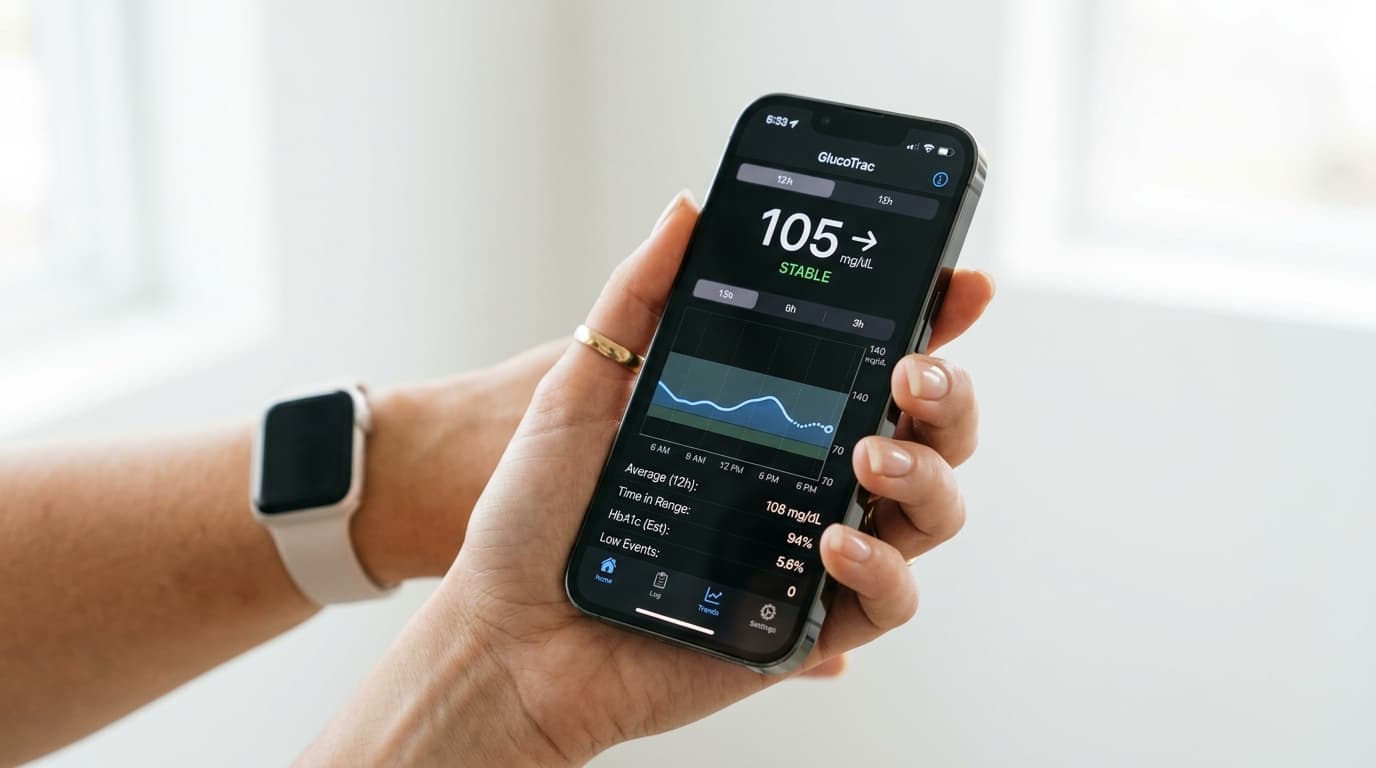
Each CGM manufacturer provides a free companion app that serves as the primary display for glucose data. The Dexcom G7 app (iOS and Android) shows the current glucose reading, trend arrow, a 3-hour and 24-hour trend graph, and provides all alert functionality. It also integrates with Apple Watch and Wear OS smartwatches for at-a-glance glucose visibility. The LibreLink app (for FreeStyle Libre 3) offers a similar interface with an emphasis on the daily glucose log and the ability to add notes for meals, insulin doses, and exercise. The Eversense app displays glucose data from the implantable sensor and includes a unique vibration alert through the on-body transmitter (useful in noisy environments where phone alerts might be missed). All manufacturer apps export data to cloud platforms — Dexcom Clarity, LibreView, and Senseonics Connect — where users and clinicians can access detailed reports and historical trends.
Third-Party Apps and Health Platform Integrations
CGM data flows far beyond manufacturer apps. Apple Health and Google Fit both accept glucose data from Dexcom and Libre apps, creating a unified health dashboard alongside activity, heart rate, and sleep data. Tidepool Mobile is an open-source platform that aggregates CGM data from multiple manufacturers into a single interface, which is particularly useful for users who switch between devices or use multiple diabetes technologies. Sugarmate (acquired by Tandem Diabetes) provides enhanced CGM display features including a customizable watch face, Alexa voice integration, and a "glucose on caller ID" feature that displays your glucose reading when your phone rings. CGM subscription services — Nutrisense, Levels, Signos, and Veri — build their entire value proposition on top of raw CGM data, adding food logging, AI-driven glucose scoring, coaching, and social features. For developers, Dexcom offers a public API that enables integration with custom apps and research platforms.
Compatibility Requirements and Troubleshooting
CGM smartphone compatibility depends on the operating system version, Bluetooth hardware, and manufacturer certification. The Dexcom G7 requires iOS 15 or later and Android 10 or later. The FreeStyle Libre 3 supports iOS 14 or later and Android 8 or later. Not all Android phones are officially supported — manufacturers maintain compatibility lists on their websites, and using an uncertified phone can result in connection drops and missed alerts. Common connectivity issues include Bluetooth pairing failures (resolved by forgetting the device in phone settings and re-pairing), signal loss when the phone's Bluetooth radio is shared with many other devices (earbuds, smartwatches, car systems), and app crashes after operating system updates. Keeping the CGM app updated to the latest version, ensuring Bluetooth and location services are enabled, and disabling battery optimization for the CGM app are the 3 most effective troubleshooting steps for maintaining a reliable connection.